Grandstream GXP1620 Setup Guide
1. Once you've powered on your Grandstream GXP1620 and connected it to your network, find the phone's IP address by pressing the round menu button, open the Status Menu and then Network Status.
2. Make sure that your computer is connected to the same network and enter that IP address into your web browser's address bar.
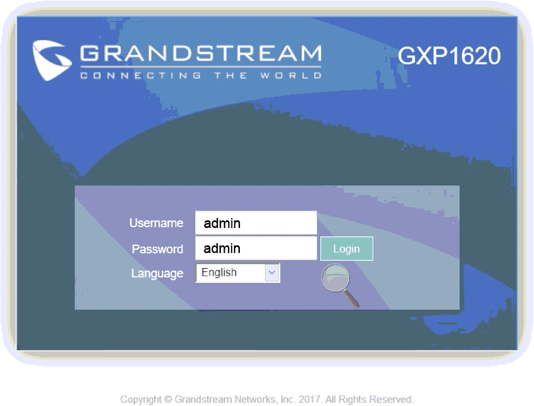
3. You should then get the phone's web login page, the default
username is: admin and password is: admin.
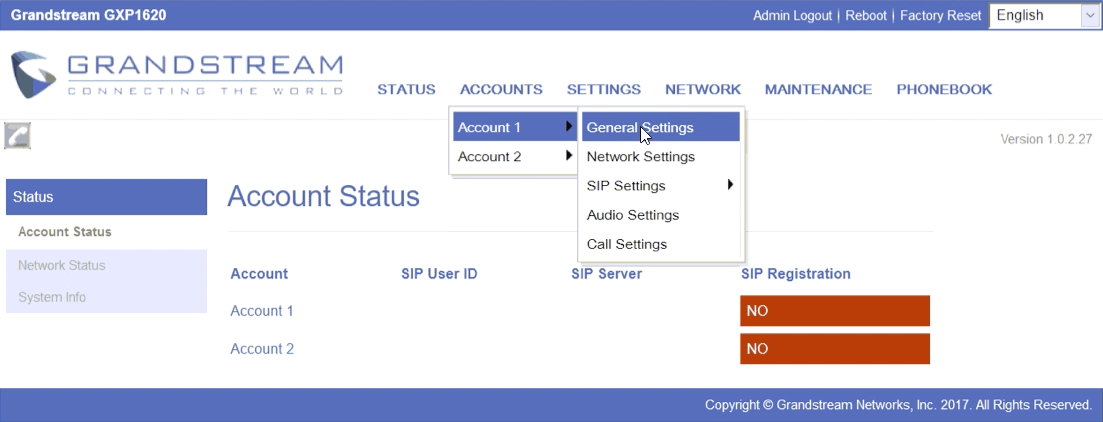
4. Hover over ACCOUNTS, a mouseover menu will appear, hover over Account 1 and then click General Settings.
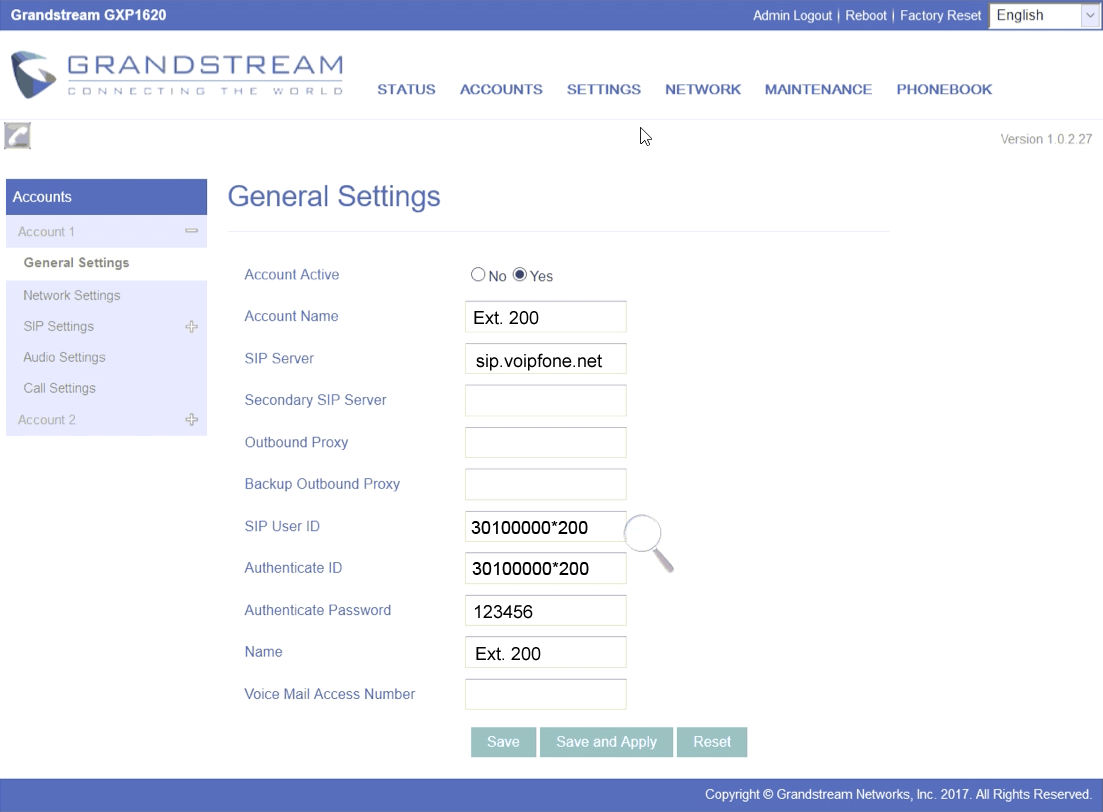
5. Enter the following details:
- Account Name: Anything you like, this will appear on the screen of the phone
- SIP Server: sip.voipfone.net
- SIP User ID & Authenticate ID: Your Voipfone Account Number or Account Number*Extension Number e.g. 30100000*200
- Authenticate Password: Your Voipfone Account password or Extension password depending on what you set above (find your extension passwords)
- Name: The name you would like to display when calling other extensions on your system e.g. Ext. 200
Can't find your password?
You might be using an Extension Account. To confirm, go to your Dashboard. If the main page title says Extension followed by your extension number, then you will need to ask the account owner for your password.
Your password is not your memorable word.
6. Click Save and Apply.
7. Back on the Status Page, Account 1 should now show SIP Registration Yes, showing that the phone is now connected.
Please note: These are basic account settings for getting your Grandstream GXP1620 registered and does not include security settings for your phone or your network, or settings that would be personal preference. For more information please contact your IT support team or the hardware manufacturer.